Driven by Events redesign insights, proactive SMS and email notifications enabled 3–5 minute response times and achieved 68% feature adoption.
My Role
UX Designer
Tools
Jira, Figma, Miro
Responsibilities
User Research
UX Design
User Testing
Prototyping
Overview
The Events Notification Feature was introduced based on user feedback gathered during the Events page redesign. Users expressed the need for timely notifications when specific events were triggered so they could take immediate action.
Identified Gap
During the redesign of the Events page, feedback revealed that users lacked a reliable way to monitor triggered events in the BEACON® platform. They needed a mechanism to receive proactive notifications instead of manually checking the page, especially for time-sensitive issues.
Project Brief
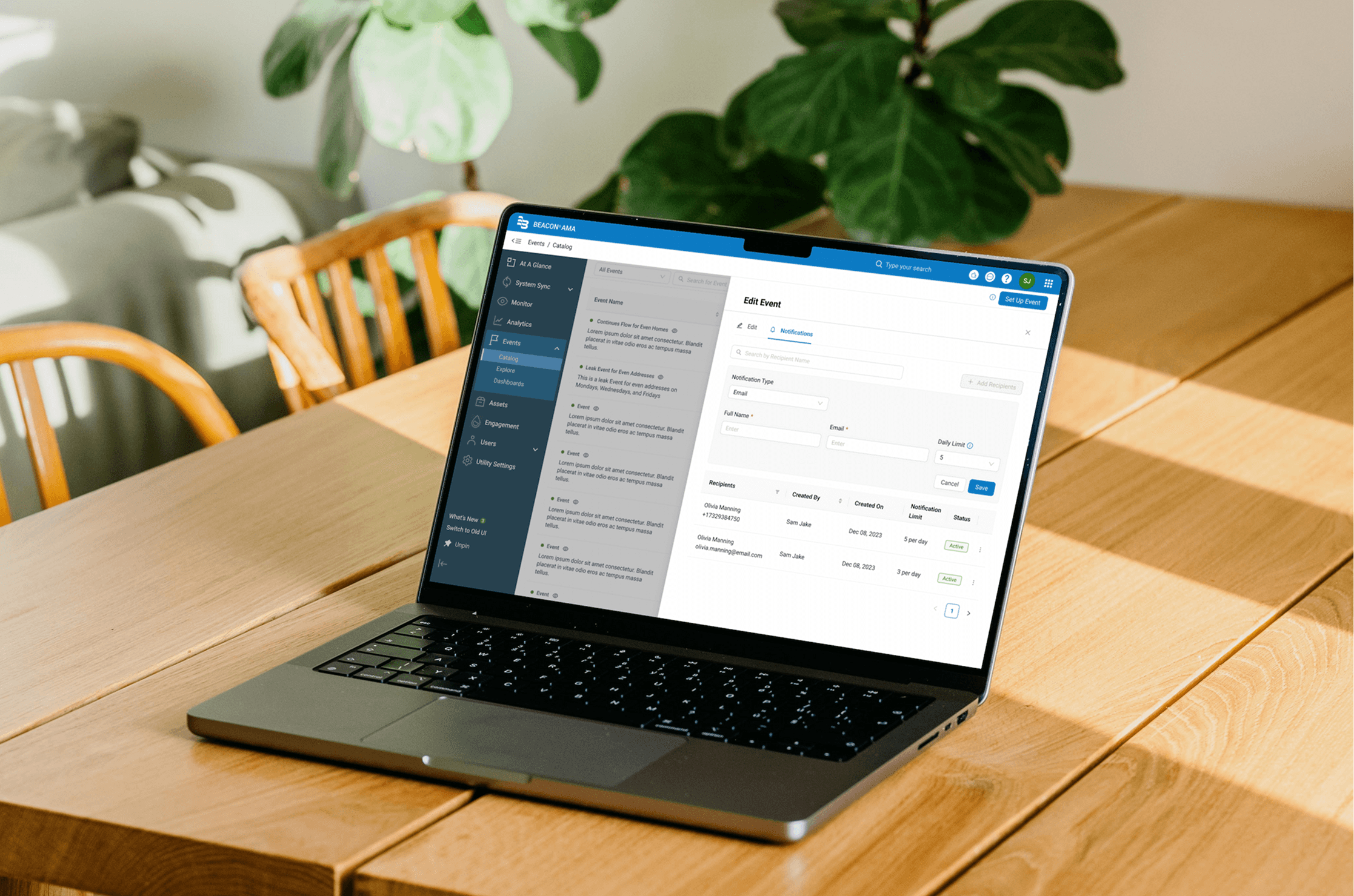
In collaboration with the Product Manager and engineering team, we introduced a notification feature on the Events Catalog page. This allows users to set thresholds and set notifications for specific events via email or text message. When anomalies such as leaks are detected, users receive alerts, enabling faster awareness and immediate action.
Success Metrics
2-3 mins
Faster Response Time
4% → 9%
Increase in Response Rate
68%
Strong Feature Adoption
Research
Understanding what users were experiencing
I conducted 1:1 qualitative interviews with six utility users from two companies who actively use the BEACON platform and interact with utility customers.
The goal was to understand their workflows, needs, and pain points around platform usage. Users consistently highlighted the importance of monitoring key events such as leaks, tampering, and irrigation schedules for effective water conservation.
They emphasized the need for real-time notifications, as immediate alerts help prevent water waste and enable faster response. This insight established event-based notification as a critical feature for improving operational efficiency and user value.
Interview Insights
Notification Preferences
95%
Users preferred receiving notifications via email or SMS. Without flexible delivery options, users risk missing critical alerts, leading to delayed responses to important events.
Daily Notification Limits
98%
Users wanted daily notification limits (1–20) to prevent alert fatigue, as too many alerts could be ignored and too few could lead to missed critical updates.
Notification Pausing
78%
Users needed the ability to temporarily pause notifications during personal time or low-priority events. This helps reduce interruptions while maintaining control over critical alerts.
Event Visibility Context
64%
Users wanted visibility into who else is notified for the same or related events, as the lack of context created coordination gaps and reduced situational awareness across teams.
How Might we
enable users to receive real-time alerts for critical event triggers so they can take immediate action without manually monitoring the Events page?
Notification User Flow
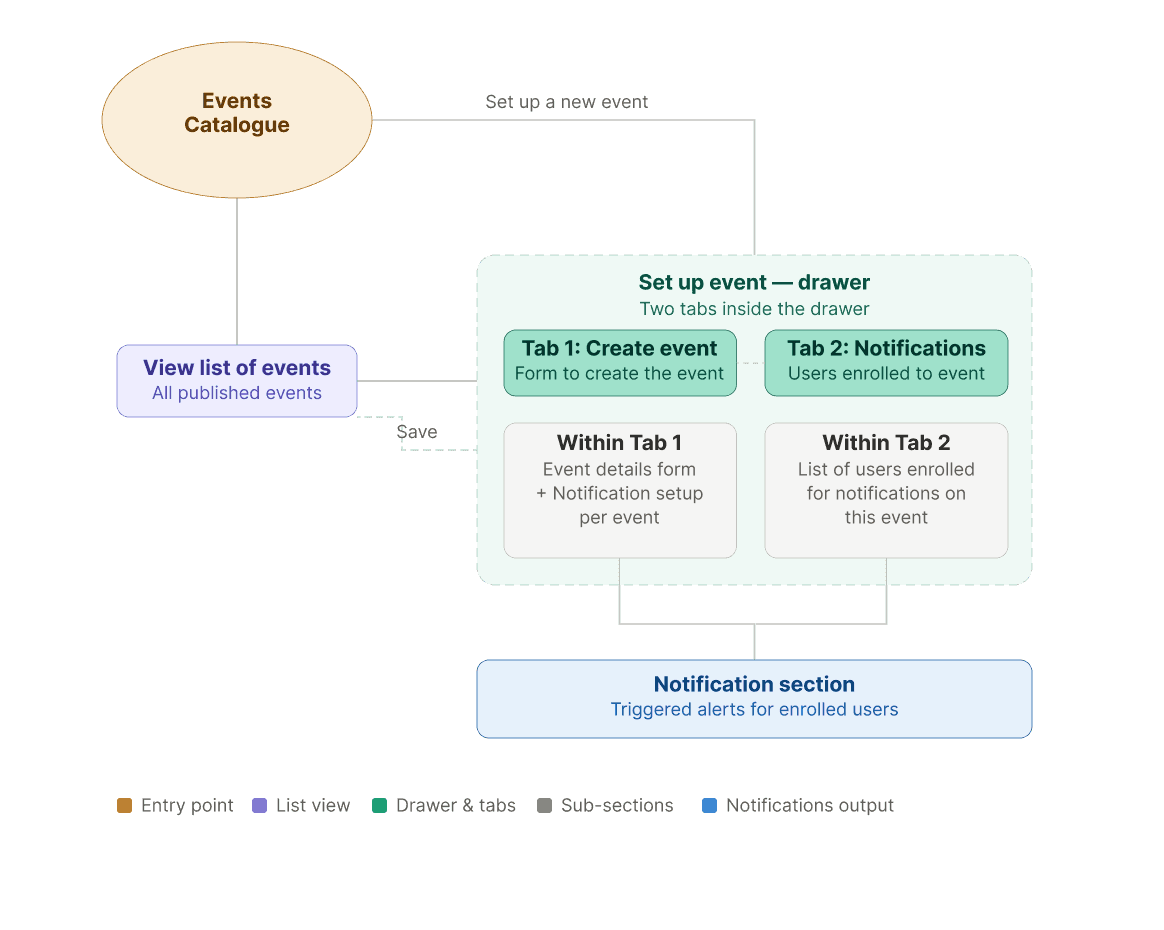
User Flow 1
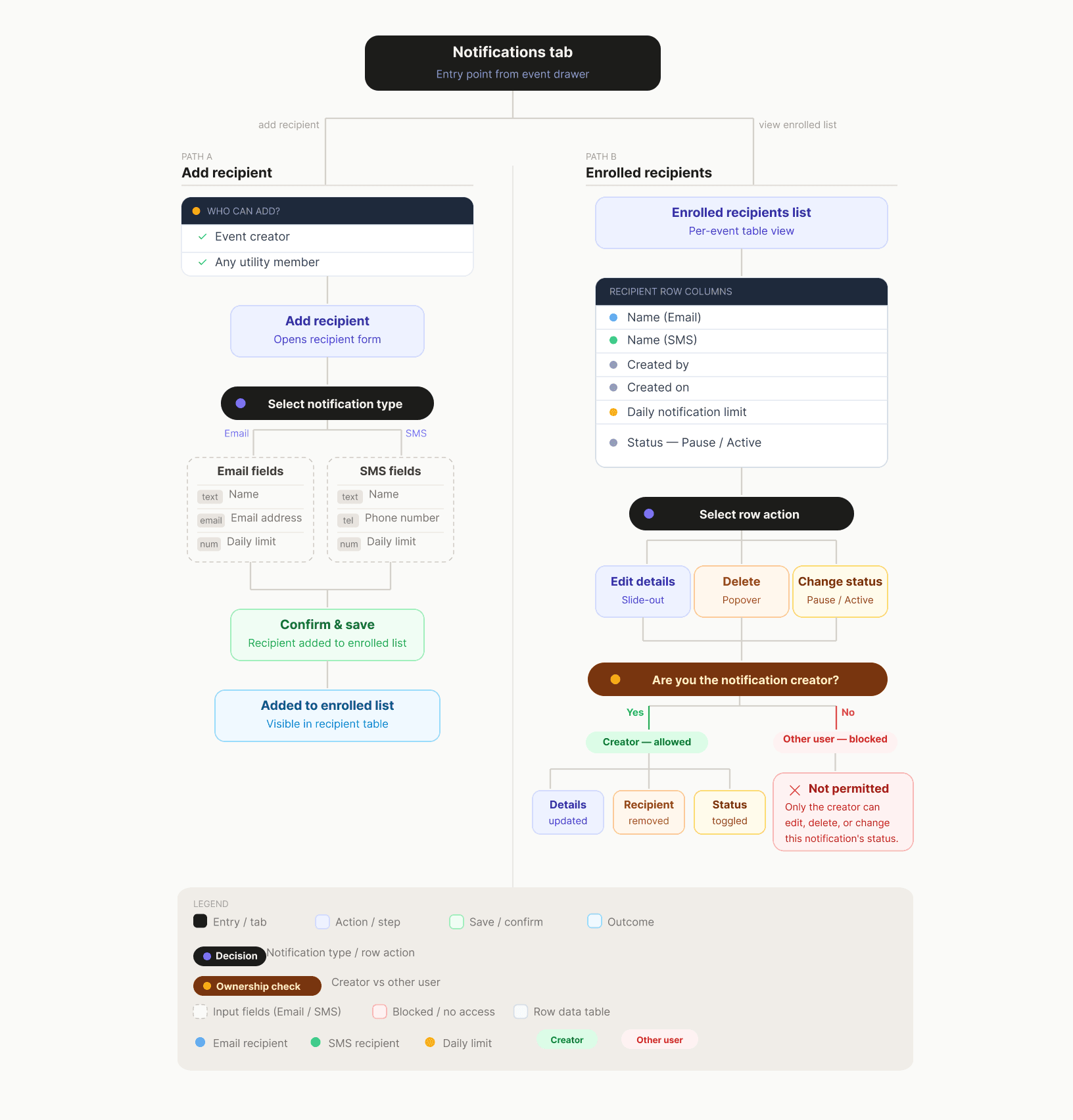
I introduced a Notification section within the Event Setup drawer, allowing users to opt into notifications directly while configuring events. For the initial rollout, we prioritized email notifications with utility users to validate the flow. This centralized event setup and notification preferences, creating a more seamless and efficient experience.
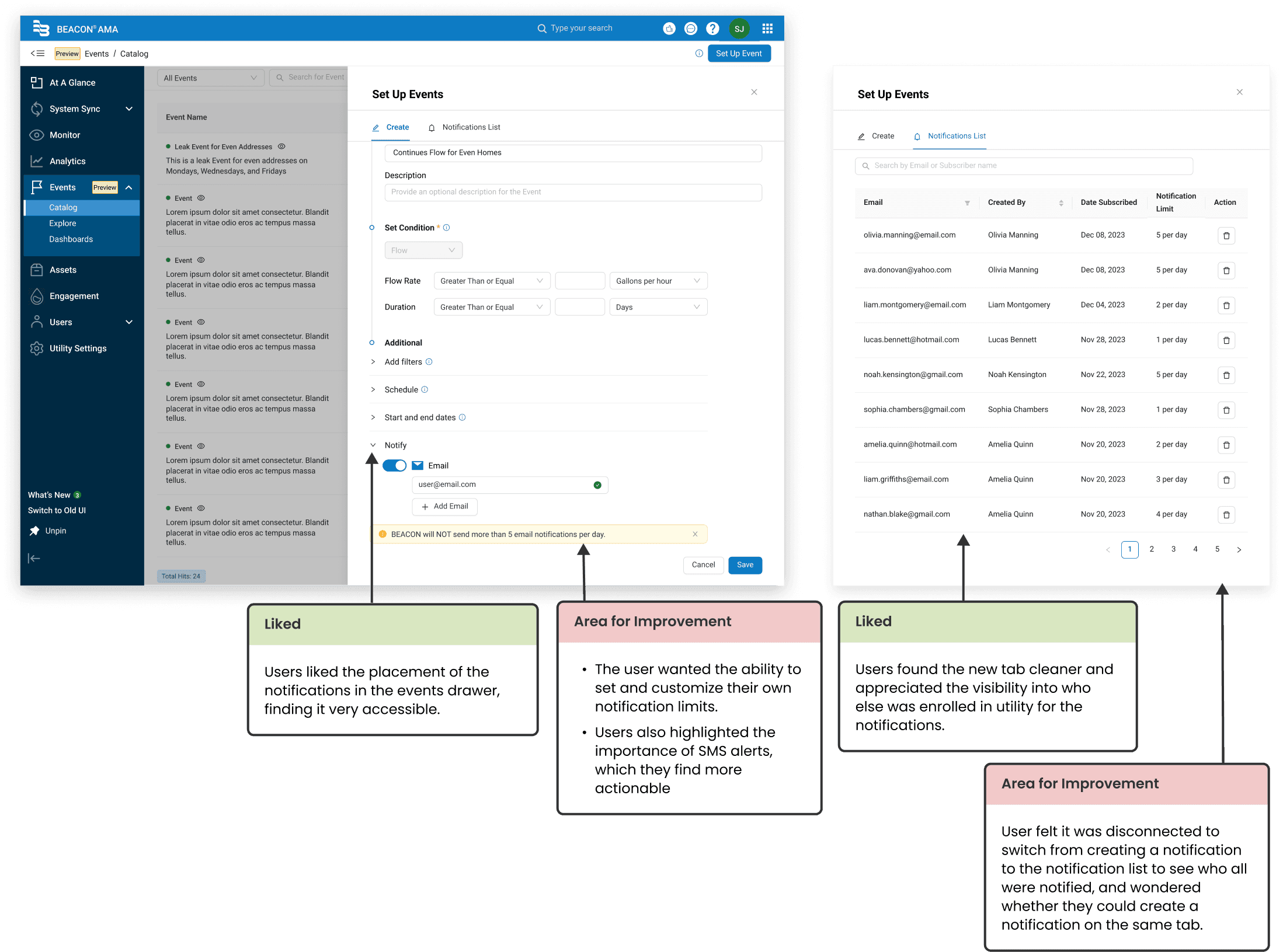
User Flow 1 - Feedback
In the initial flow, notification creation was placed inside the event setup drawer for convenience. However, users felt disconnected because the notification list opened in a separate drawer. They preferred creating notifications and viewing enrolled recipients in a single tab. Users also emphasized the importance of SMS, so the MVP included both email and SMS notifications. Additionally, they requested the ability to customize notification limits.
Enhanced Notification Flow
Based on feedback, I revised the flow to include two tabs: one for event creation and another dedicated to creating and managing notifications.
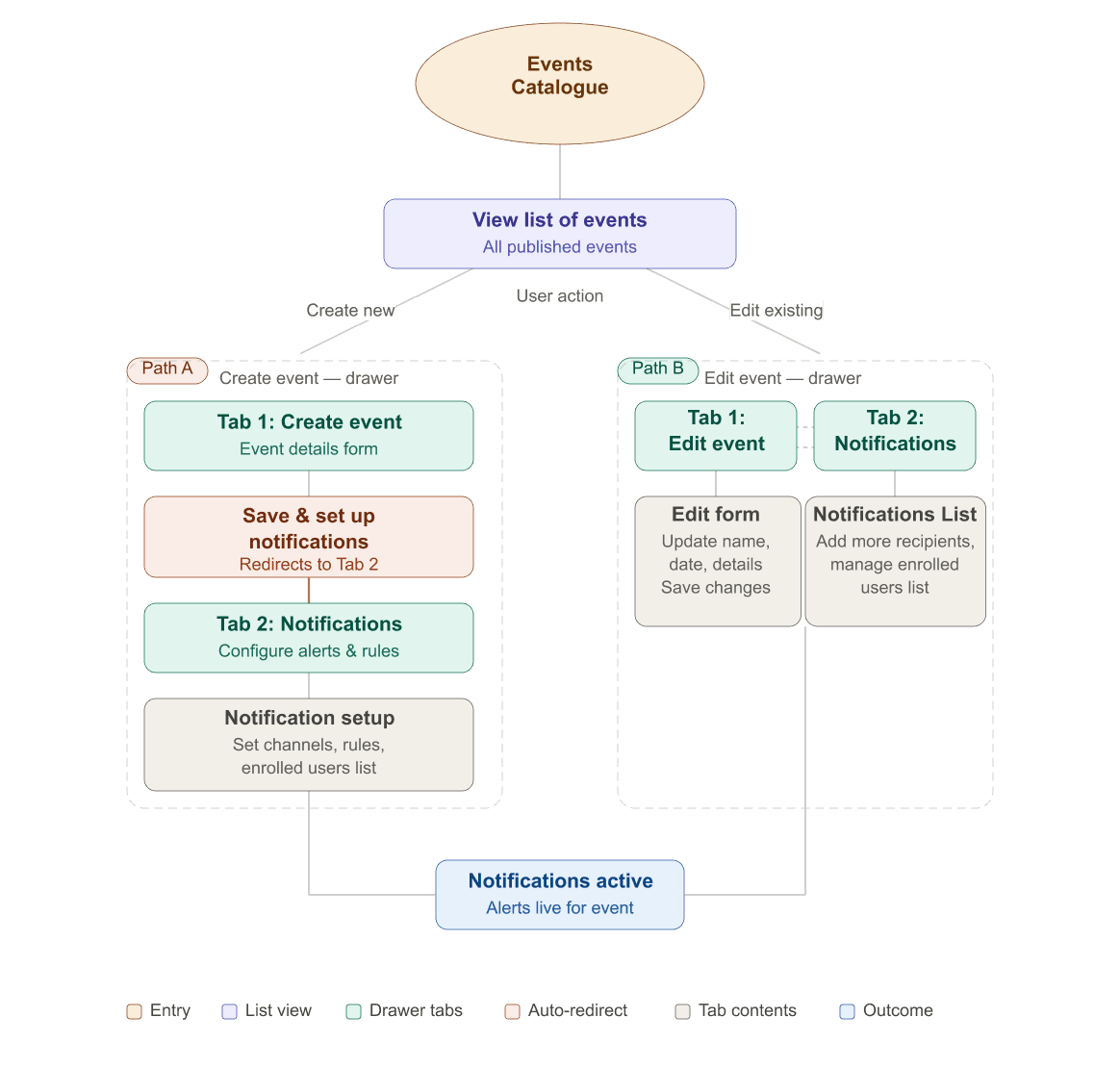
Based on research insights and user feedback, I designed an event notification user flow to prioritize key MVP features. Users emphasized that SMS alerts were more actionable, so we included both email and SMS notifications in the MVP.
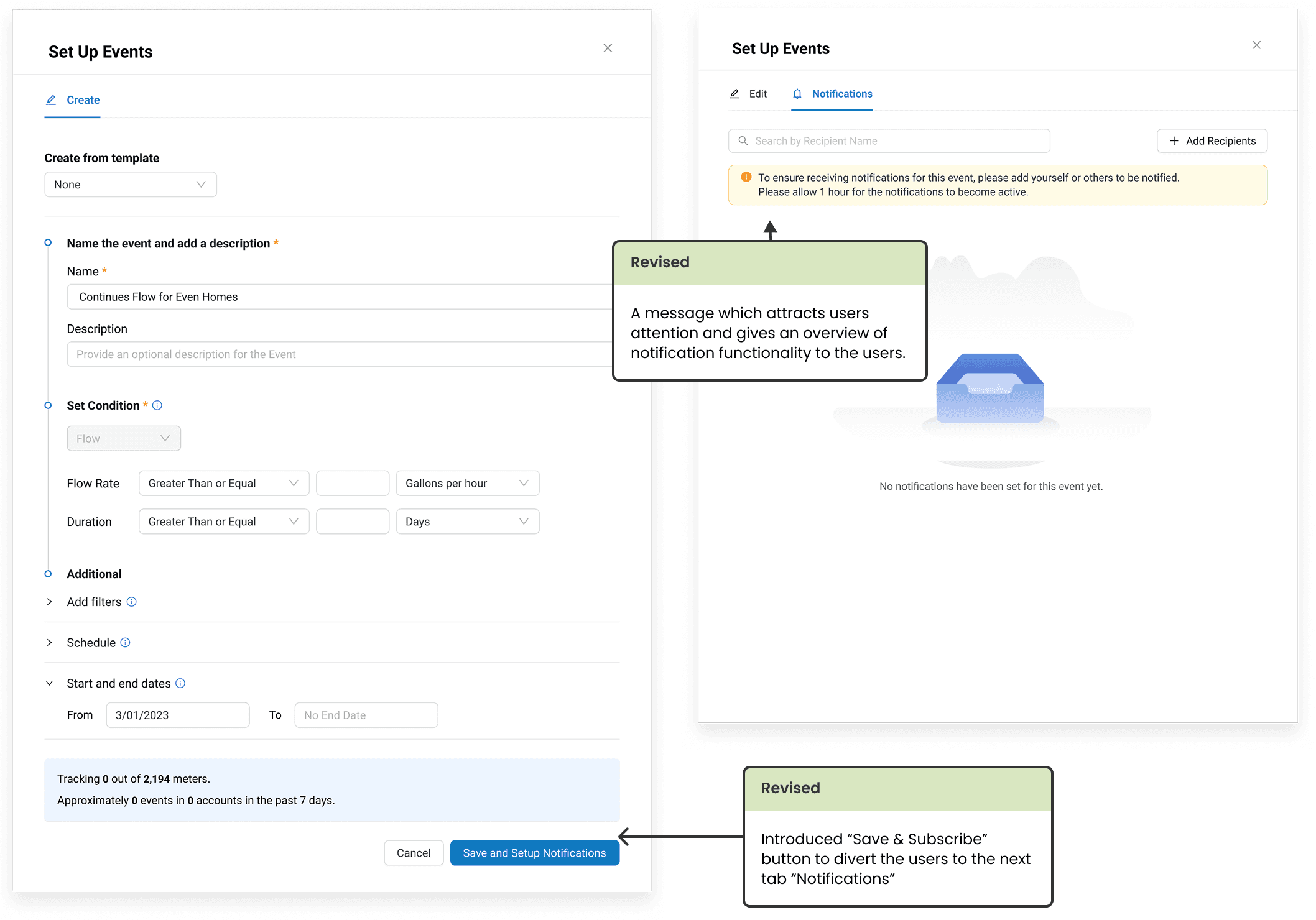
Based on initial user feedback, creating notifications and viewing enrolled users were moved to a new tab. However, some users did not notice this tab after creating an event. They suggested the system should automatically guide or redirect them to the Notifications tab after event creation.
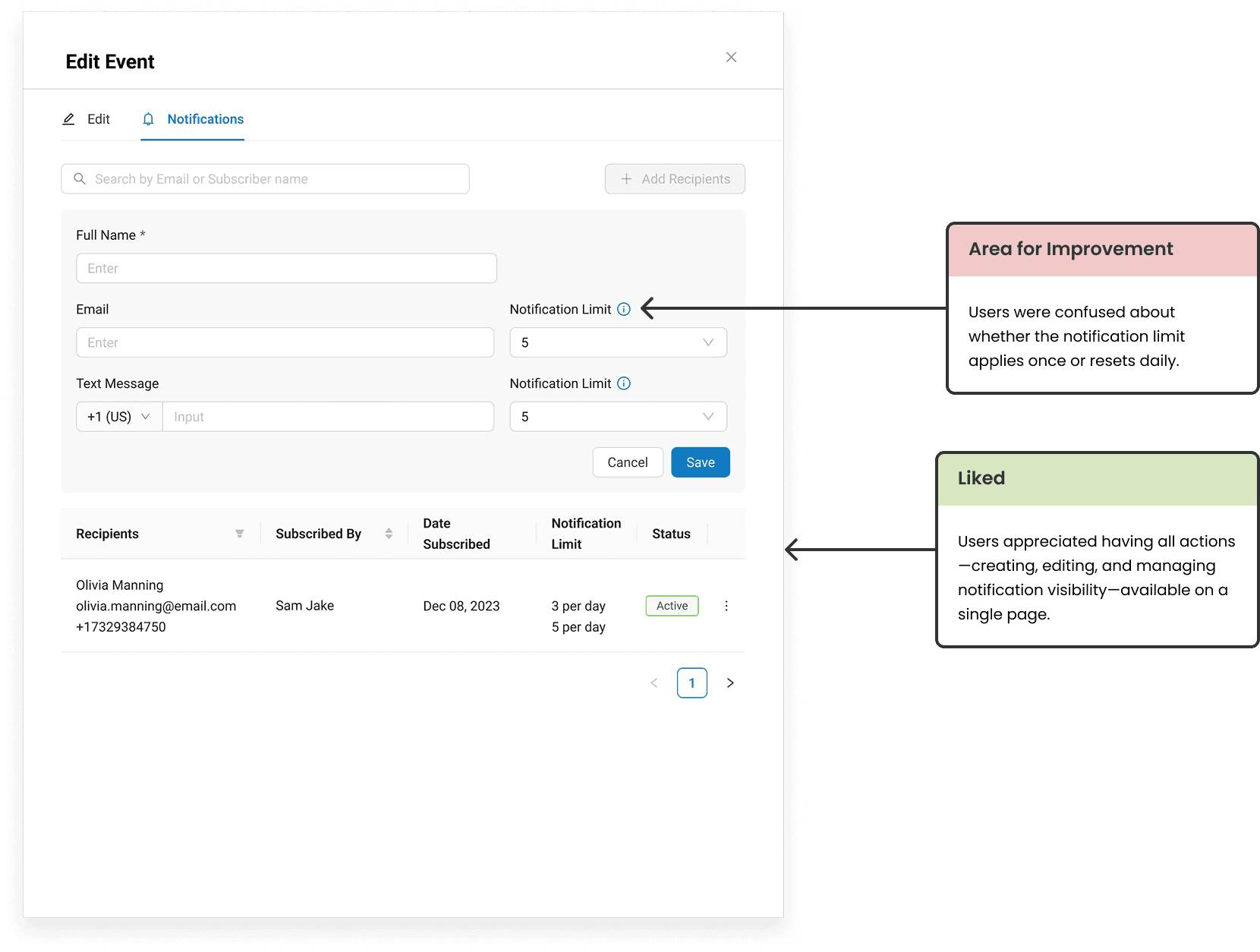
Adding New Recipient
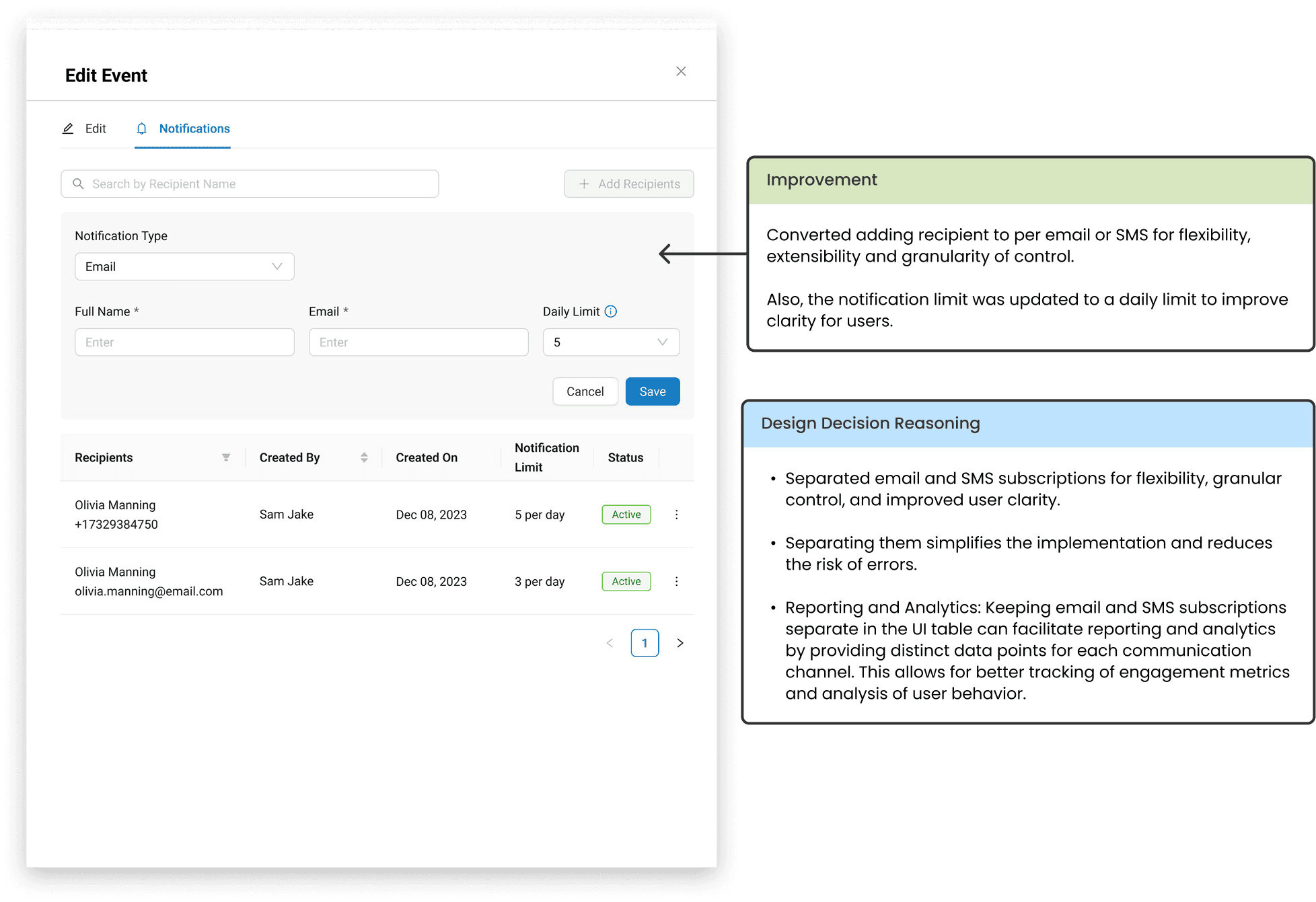
While adding a new recipient, the Users were confused about whether the notification limit applies once or resets daily.
While setting up a new event, we chose to display only the event creation form and hide the notifications tab, allowing users to stay focused on configuring the event.
Technical Constraints
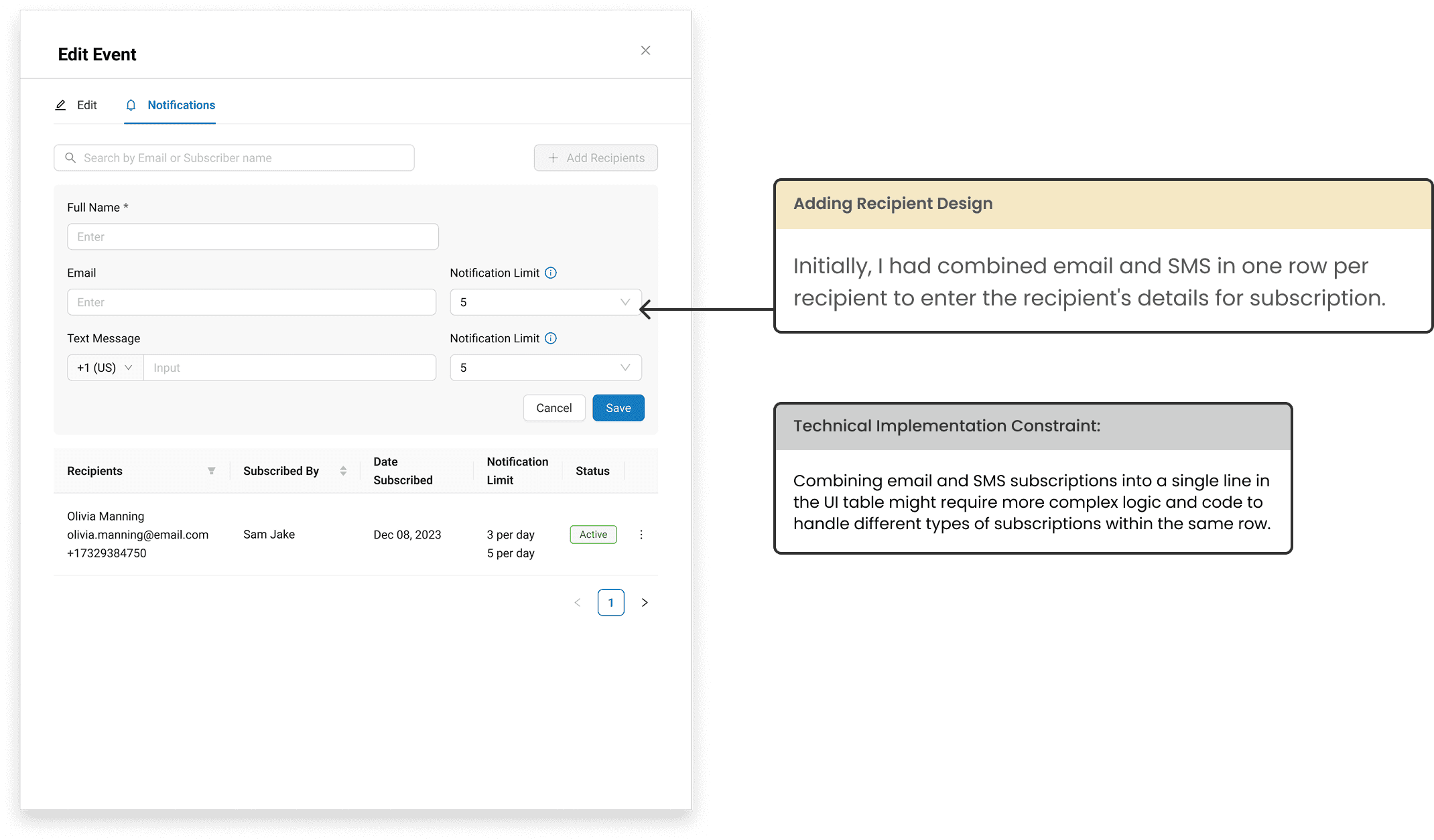
Solution to the Constraint
Notification Experience Design

Setting up new Event and Notifications tab
The "Set Up Events" drawer has only one tab: "Create." After filling in the details to set up an event, users can click "Save and Set Up Notification”. Which will then direct them to the "Notifications" tab. This design helps users focus on entering information first, without being distracted or overwhelmed by multiple tabs.
New Recipient - Notification Preferences
Clicking “Add Recipient” opens a slider to select either email or SMS, ensuring effective alerts with clear and efficient data entry.
Users can set a daily notifications limit (1-20), empowering them to manage volume while staying informed.


Edit Notification
Subscription Owner can select “Edit” from the three dots that open an inline slider with pre-filled, editable fields, ensuring a consistent layout that makes updates easy and intuitive.
Pausing the notifications
Pause Notifications: Introduced a “Pause” option in the action menu (three dots) to empower users to manage interruptions seamlessly during meetings or leisure activities.
Enhanced Subscription Control: Added a “Delete” option for events, with a confirmation step to ensure flexibility and prevent accidental deletions.

Results and Impact
The introduction of SMS and email notifications significantly improved user responsiveness to triggered events. Previously, users had to manually log into the BEACON platform to monitor events, which led to delayed or missed actions. With proactive notifications, users were immediately alerted and prompted to respond.
The notification system increased user action rates from 4% to 9% after event triggers, helping users identify and respond to critical events faster while reducing reliance on manual monitoring.
3–5 minutes average response time after notification delivery
68% strong feature adoption across users